While this isn’t strictly an inverter or fault finding case study post, we have an operation center that monitors a large amount of sites across the country. It’s extremely important for them (along with the SLA’s in place) that these loggers remain online for them to be able to monitor these sites. It’s also extremely helpful for us as technicians to attempt to remotely rectify sites and to access historical data to assist in troubleshooting.
While this guide is for the Deye or Sunsynk inverter specifically, the procedure is mostly standard amongst the wider majority of brands and models. The logger will have its own wifi hotspot you need to connect to, from there you’ll need to configure the SSID and password for the wifi AP you want it to get internet access from.
This can be done through the Solarman app as well (which you would already have as you’ve created an account) but for us as field technicians i’ve simply found it easier and quicker to just do it from a browser. We also find that some of the sites, the wifi APs set up for us to connect to are set as hidden networks so the SSIDs need to typed in manually.
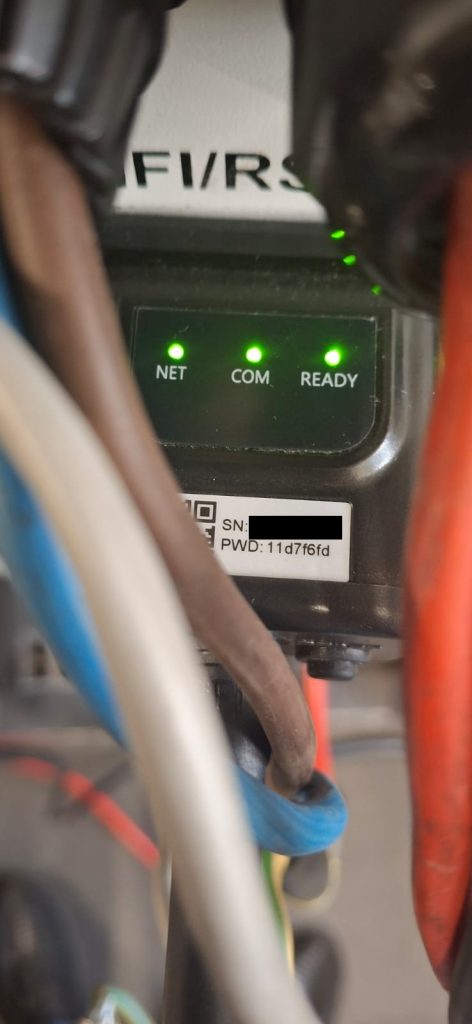
For our first step, we need to locate the logger itself, if you’re unsure of what it looks like here’s an image of what it looks like below along with what LED’s you should be seeing once plugged in for the first time. The “com” lights should be on solid, the “ready” light should be on a slow blink. “Net” will only come on once the loggers wifi AP has been configured. The Net light indicates the logger has established a connection to a wifi network and the com light indicates the logger is communicating with the inverter itself.
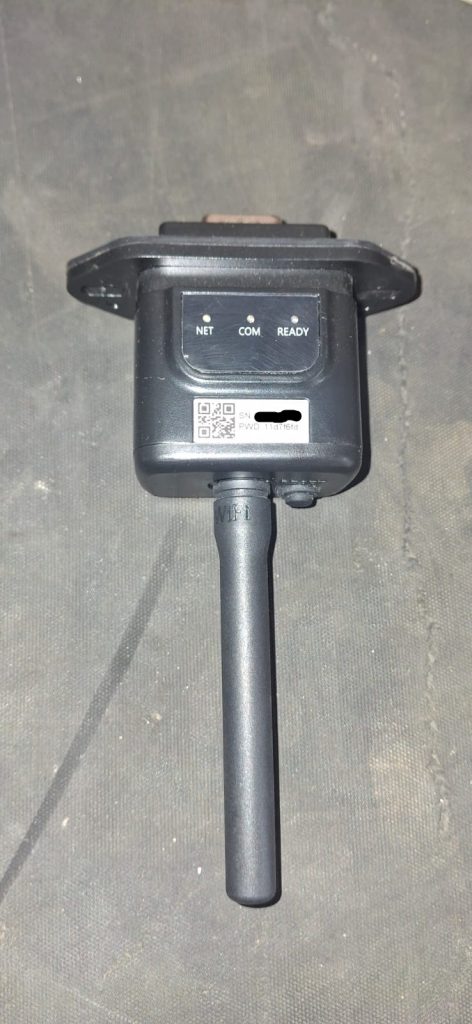
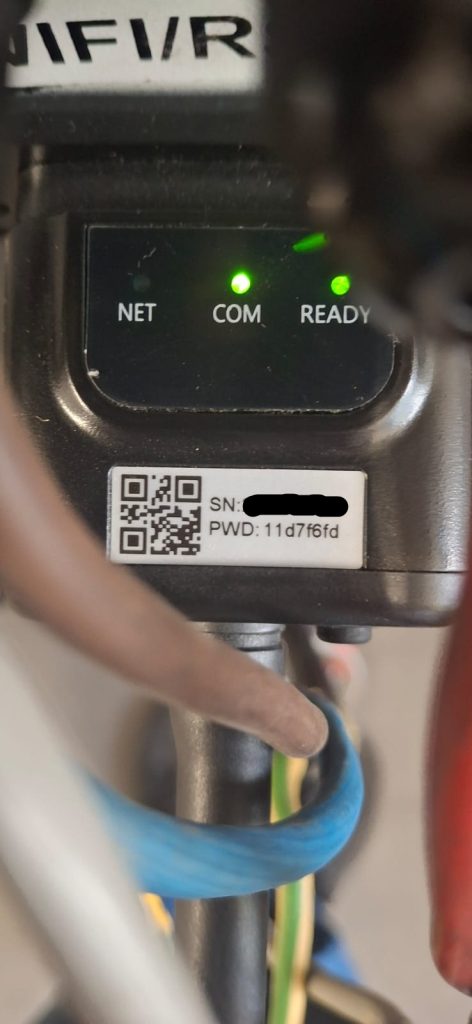
Once you’ve located the logger, have it installed on the inverter and inverter is switched on, we can move to the next step. Either from your mobile phone or laptop (I used a laptop for this example), open your wifi network selection. The wifi network SSID you want to connect to is the loggers serial number (usually starting with “AP_xxxxxxxxxx”) connect to that using the PWD password printed on the logger underneath the SN serial number.
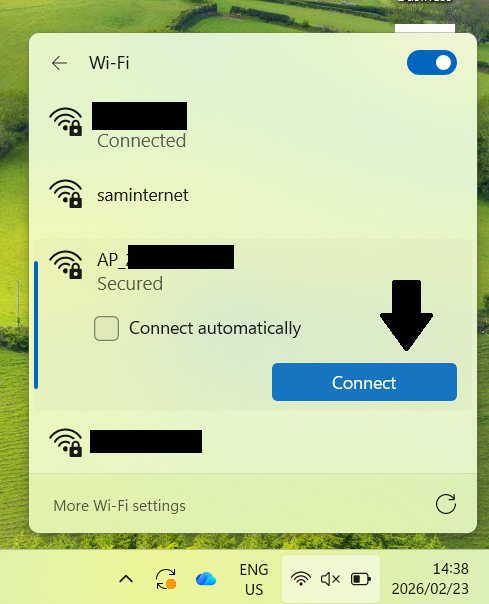
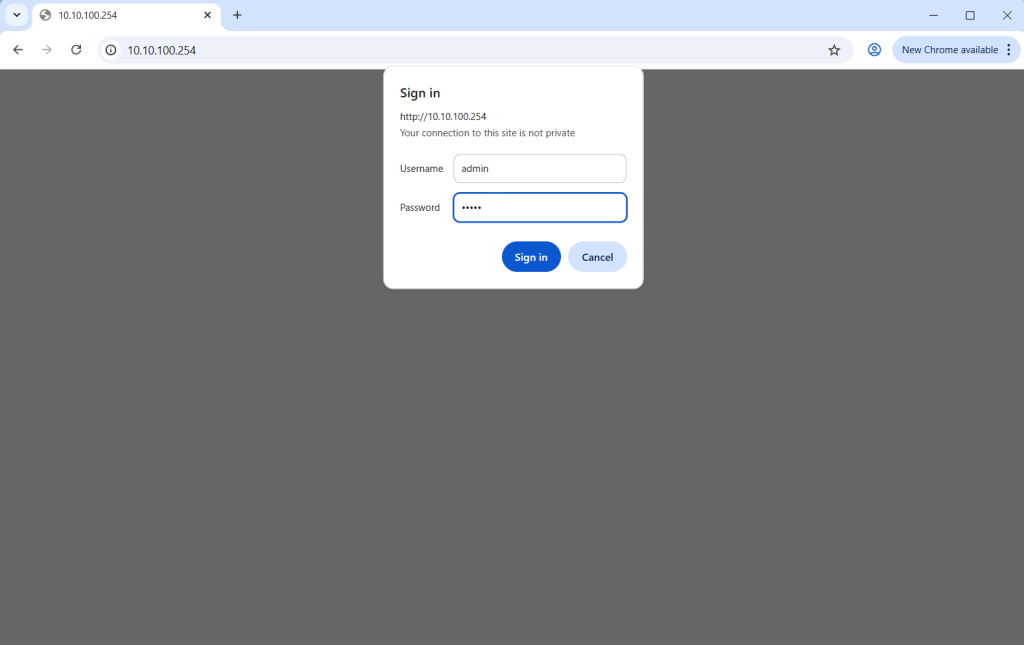
Once you’ve connected to the loggers wifi hotspot, open a web browser window and navigate to the address 10.10.100.254 this is the IP address of the logger and will take you to its admin panel to configure your logger. The default login is username: admin and password: admin
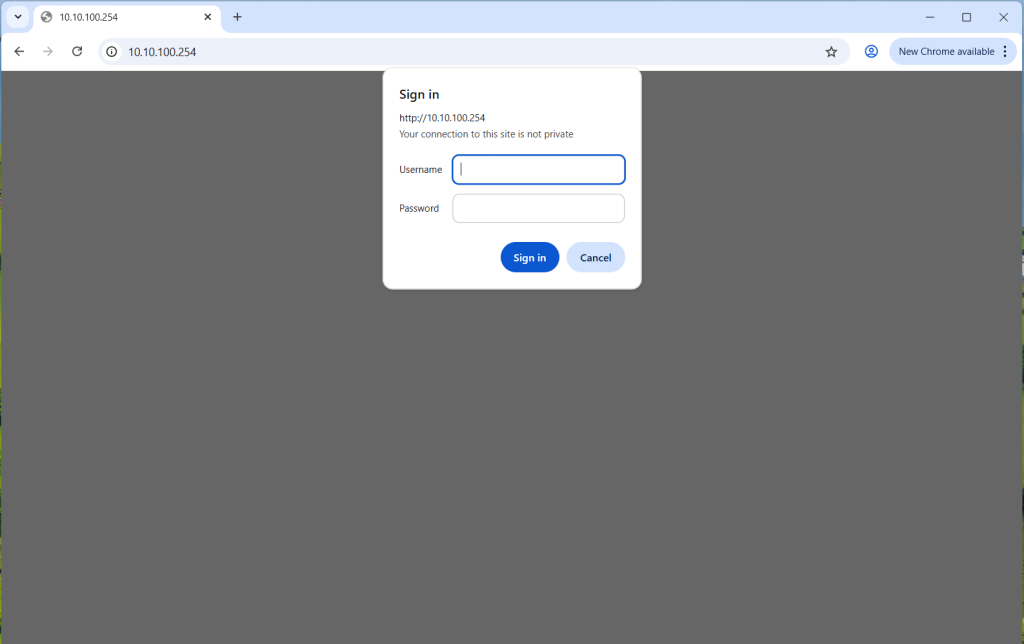
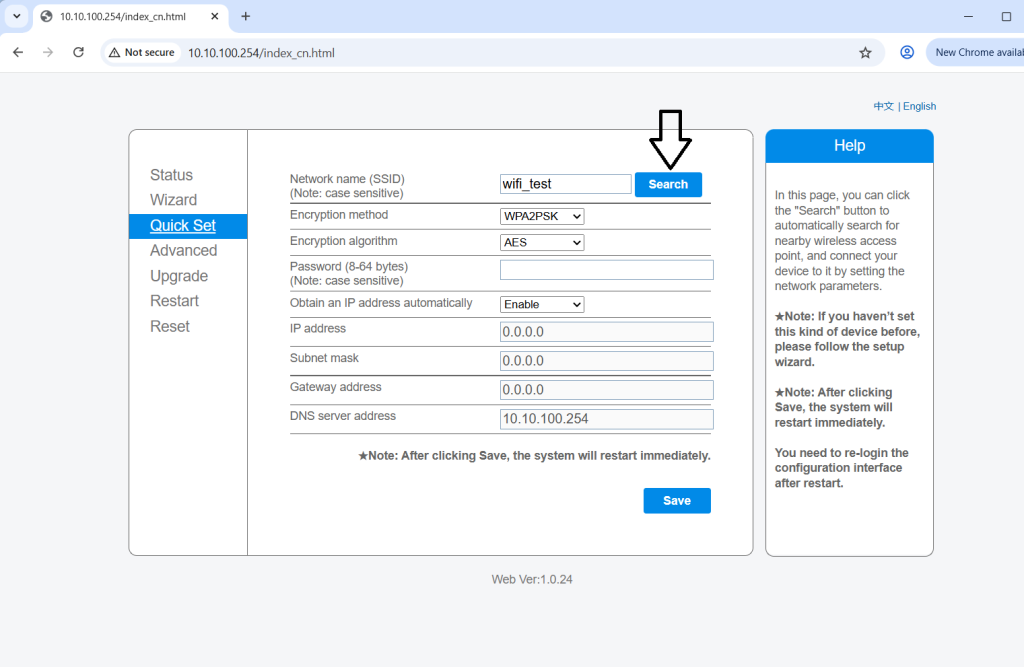
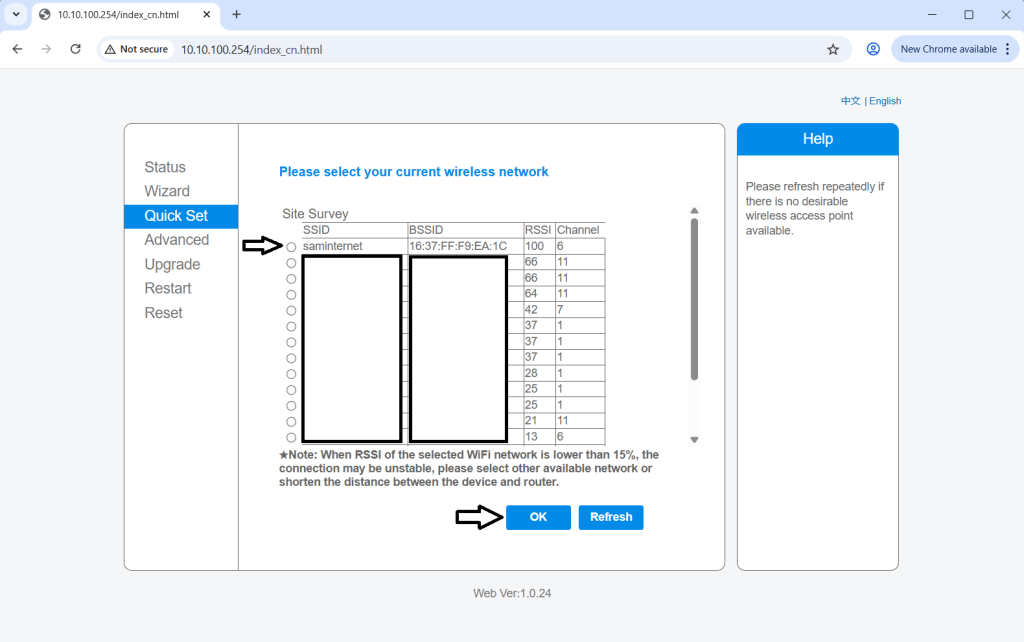
This will then log in to your admin panel. To configure your wifi settings, navigate to “quick set” on the left menu pane. Once in quick set, we can now look for the wifi network to connect to. in your middle pane, look for “Network Name (SSID)”, on the right of the input text field, click on search. This will open a menu where you will need to find the network name (or SSID) you want to connect to (this will typically be your home or business wifi network), in this case “saminternet”. Then click OK.
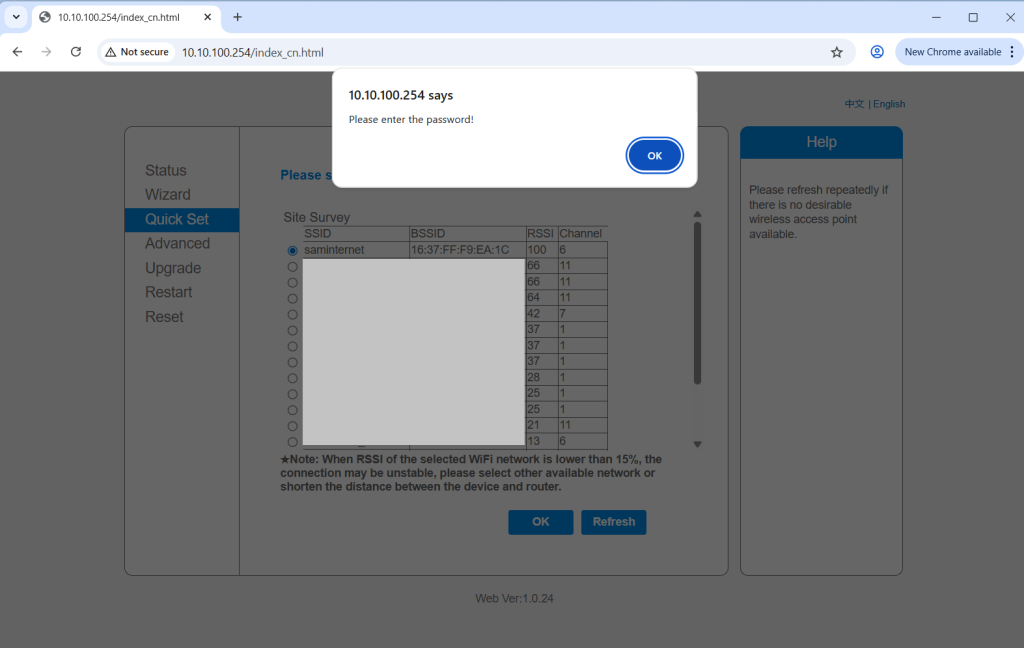
At this point you’ll be prompted with a pop up saying “please enter the password”, click ok and it will bring you back to the quickset pane. On this pane you will now notice you have your “Network name (SSID)” set as your selected wifi network. Look for “password” and enter the password for the wifi network your trying to the network name that you’re connecting to.
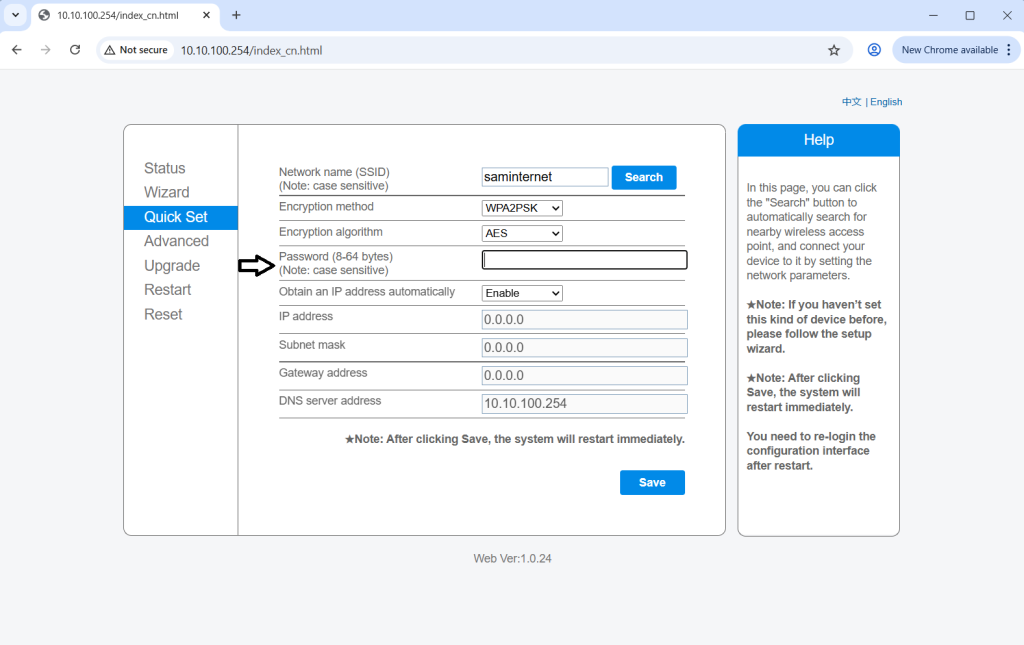
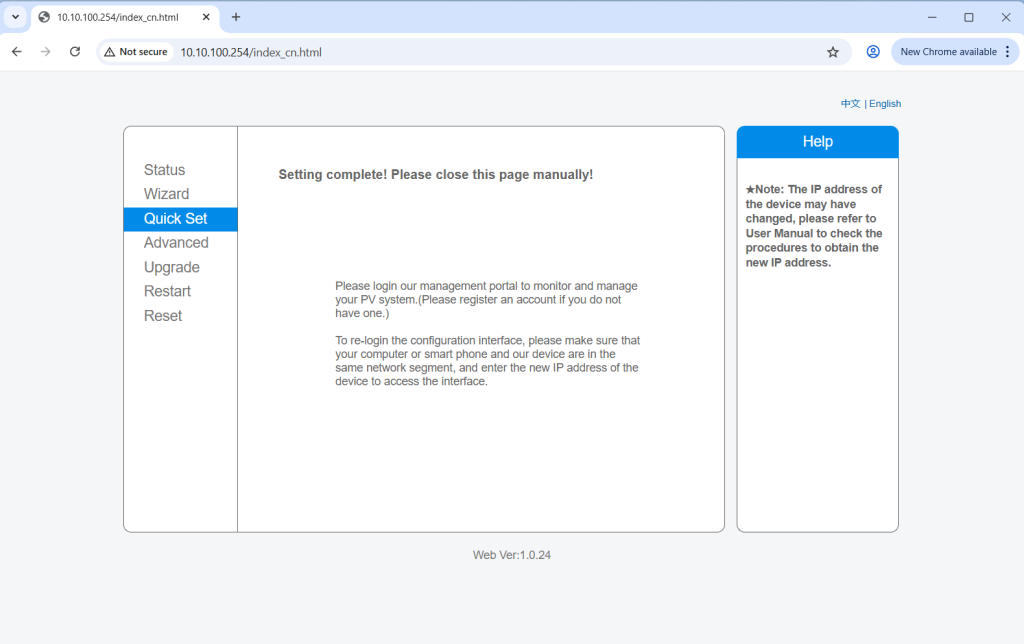
Once this is done click on save at the bottom and the pane will notify you that it is complete and the logger will now restart. Wait about 30 seconds for the logger to restart, you will notice the green net light blinking while it’s attempting to establish a connection to the wifi network. Once the logger has established a connection, the “NET” LED and “COM” LED should both be solid green and the “READY” LED should remain on a slow blink. If these LEDs indicate as described, this means the logger has been successfully connected to a wifi network.
As mentioned earlier in this post, this is just for the older Deye or Sunsynk wifi loggers (the newer ones are slightly different in design) but the process remains the same for the majority of inverters and models. Some inverters, like the Victron are a little different in where they use their own proprietary software to do these connections but even still, the concept of understanding the wifi networks remains the same.